
Let me admit something.
I used to think my pin text was fine. I’d add 1-2 keywords, hit publish, and hope Pinterest did the rest.
Then a few weeks later, I’d open my laptop and check analytics. I wasn’t happy, because I put in a lot of work, but I couldn’t cross over 10,000 to 15,000 people visiting my blog each month.
That’s the part that stings. You’re doing the work, but the numbers don’t move the way you want.
If your pin description and title has weak keywords, Pinterest can’t show it to the right people. That means lower visibility, fewer clicks, and more time spent fixing old pins.
In this post, I’ll show you what to edit, why it matters, and the simple order that keeps your text natural. You’ll also see how I use keyword research and a writing helper so I don’t keep rewriting the same pin text all week.
Grab your business power juice (coffee), and let’s fix this.
This post includes affiliate links to products I love and recommend, meaning I may receive a small commission at no extra cost to you. Please read full disclosure for more information.
How to edit a pin on Pinterest and add keywords without sounding spammy
If your pins feel invisible, you don’t need “better luck.” You need stronger keywords that are written normally, not stuffed in like Thanksgiving turkey.
So here’s what you should do if your pin text sounds too keyword-forced, or if you didn’t even use any keywords.
When you edit a pin, you should update the title and the description together, because they work as a team.
Pinterest also looks at where you’re linking to, so your pin text and your link need to match. If they don’t match, Pinterest gets confused, and confused usually means less reach.
I also want to say this clearly again. Keywords matter, but stuffing them can get you in trouble. I didn’t want to risk my account, so I always kept my descriptions natural.
In the next parts, I’ll show you why you should edit, and the order I follow so it stays simple.
The two reasons you should edit pins
Most creators edit pins for one of two reasons.
The first reason is the keywords are weak. I did this when I used one or two keywords, and they weren’t the best picks because they didn’t have much search volume.
The second reason is the keywords are missing completely. If you don’t add any keywords people are searching for, your pins won’t get almost any visibility.
When I started using Pinterest for business, I did the first mistake a lot. I’d use 1-2 keywords, hope for the best.
That’s also why it took me 3 or even 4 days a week to make a week of pins and schedule them. I was writing everything by hand.
When I started taking Pinterest keyword research seriously, that’s when I started getting more reach and traffic to my blog. It didn’t happen overnight, but after a month or two I started seeing the outbound clicks go up.
The safest order I use when I edit
If you want edits that help, the order matters.
I start with keyword reserach, because I don’t want to wing it anymore. I used to find keywords inside Pinterest, but I didn’t know how many people searched for them.
So I started using Pin Inspector tool. It shows you the monthly search volume, engagement, and so much more.
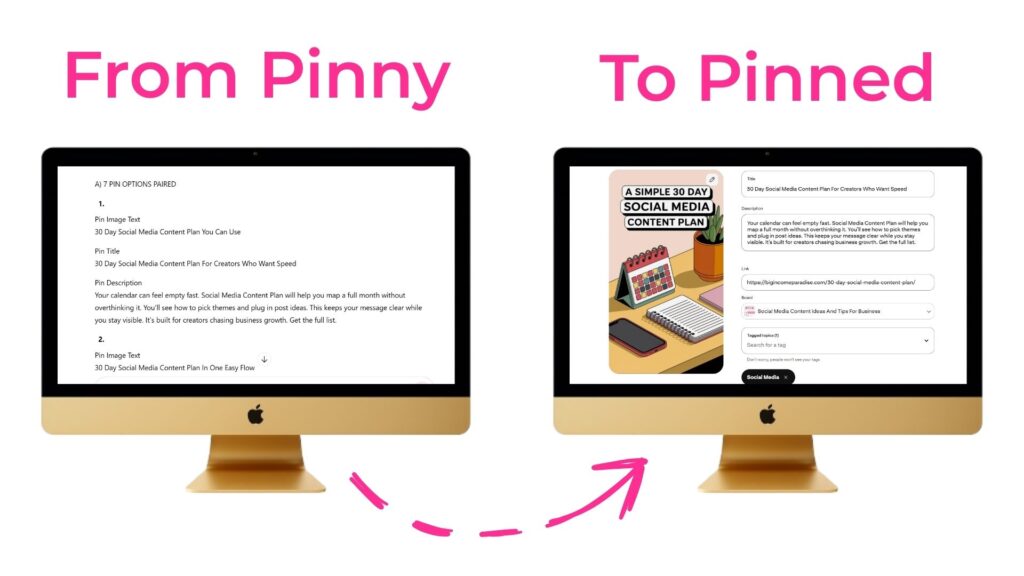
Once I have my keyword list, I use Pinny SEO Pro to write my pin titles, descriptions, and even AI image prompts, so I can quickly make the images.
When I have everything ready, I can edit the pin with new text. In the next section I’ll show you how to do that.
How to edit in Pinterest on desktop and mobile
The steps is the same on desktop and mobile. You open the pin, you click the three dots, and then hit “Edit Pin” button.
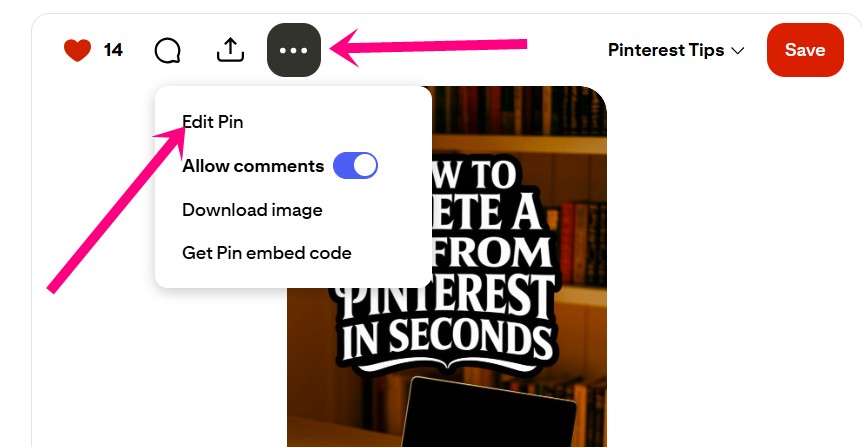
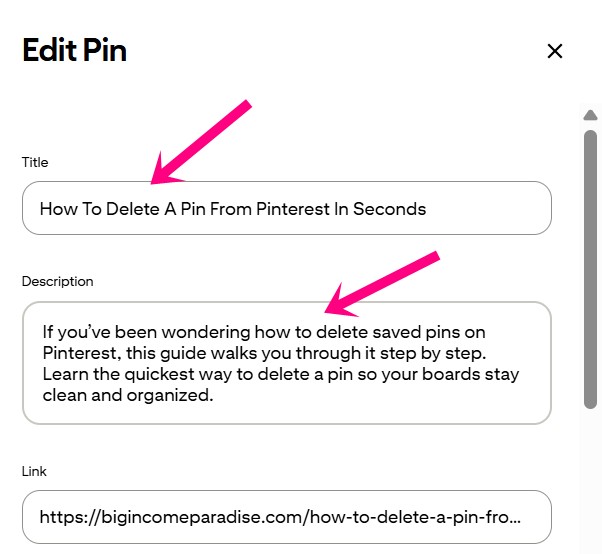
A box will open up and you’ll be able to edit the description and title. Just copy and paste the new versions in there. Then you click the red button “Save” and you’re done. Simple, isn’t it?
There’s one more important thing I’ve noticed. If you’re trying to fix your pin that was re-pinned by someone else, you won’t be able to do it.
So if you don’t see the “Edit Pin” option, it’s because someone else saved your pin. I know it’s annoying, but Pinterest made that shift for some reason.
That’s why my best advice to you is this: ALWAYS do your keyword research, and write tiles and descriptions that you don’t need to edit later.
How I write a good pin description that uses keywords naturally
A good pin description does two jobs. It tells Pinterest what your pin is about, and it tells a person why they should click.
Kkeywords are important, but I don’t want to stuff them in. I’ve seen and heard of people losing Pinterest accounts after stuffing keywords into descriptions.
So the goal is simple. Use those phrases you’ve found, but keep the description humanized.
I’ll show you the checklist I follow so the text stays clean and human, even when you add more keywords.
My simple description checklist that still sounds human
Here’s what I do now, and it keeps my pin text natural while still using keywords. It also keeps me from sitting there rewriting the same pin 5 times:
- I research keywords with Pin Inspector so I pick keywords people actually search for.
- I open Pinny and add all my details like the blog title, who it’s for, and the keywords.
- I get 7 pin titles and descriptions from Pinny and read it once to make sure it sounds human.
- I save the pin text into my Pinterest planner so it’s ready when I batch.
- I make the pin images with AI (and sometimes with Canva) and keep everything matched to the same topic.
- I schedule everything for the next 14 days so I’m not thinking about Pinterest daily.
And yes, I still do small tweaks sometimes, because AI tools aren’t perfect. Next, I’ll show you when Pinny helps the most, and when I change a line or two.
When Pinny helps and when I tweak
When I started using AI and learned how to train it to write pin titles and descriptions in a natural way, that’s when I started seeing a real shift. I started pinning more, and my traffic went up.
Then I wanted to save even more time, so I created a custom GPT. That’s how Pinny was born.
Pinny helps me create pin titles and descriptions fast. But it sometimes makes mistakes, so I edit a bit, but the heavy lifting is done.
The big win is not “perfect text.” The win is getting the output fast, so you don’t waste days just to schedule a week of pins.
If you’ve ever thought, I don’t have time for Pinterest, I get it. I used to spend 3-4 days a week making pins for just that one week. Now I schedule 70 pins for 14 days – in just 2 hours.
That’s how I have time to do other things in my business like email my list, write blog posts, create social media content, etc.
If writing pin text slows you down, Pinny SEO Pro can help you do the work faster.
What to do after you edit so it can work
Here’s the part most digital creators hate. Pinterest takes time. Yeah I know, I’m also impatient, but there’s nothing we can do about it.
Edits don’t always show results right away, and that can make you want to quit. I felt that too, which is why I told myself I had to wait a few months and keep going.
What helped me was doing two things at once. I edited pins when it made sense, and I kept creating new ones so Pinterest had more to work with.
That’s how my edited pins started getting more visibility and more outbound clicks. It wasn’t instant, but it was clear enough that I knew I was on the right track.
Wrapping it up
If you want more Pinterest visibility and traffic, research your keywords first. Then edit your title and description together, and keep the writing natural.
That’s what changed my results. I stopped winging keyword choices, I started using search volume data, and I stayed patient long enough to see it work.
If you want support with both steps, I recommend these two tools. Pin Inspector that it helps you find keywords people search for, and Pinny SEO Pro that helps you write titles and descriptions fast.
That’s how you build traffic without working on Pinterest 24/7.
Here are some posts that you’ll love:
- How I Create Pins on Pinterest Quickly and Schedule for 14 Days
- The Pinterest Keyword Tool That Blew My Mind (And Why You’ll Love It Too)
- How to Make Money on Pinterest for Beginners
- How to Delete a Pin from Pinterest in Seconds (So Simple!)
- The Ultimate Guide to Finding Pinterest Keywords That Boost Your Visibility
- How To Use Pinterest For Business – TOP Pinterest Tips
 Petra Šranc (CEO of Big Income Paradise) is passionate about teaching female entrepreneurs how to do Social Media Marketing to grow their business online. She also focuses on teaching Social Media content tactics to skyrocket traffic, leads, and sales.
