
I used to build Pinterest boards with weak keyword research that made me cringe later.
The titles sounded weird. The descriptions sounded even worse. And the whole mess just sat there, taking up space, doing nothing for my business.
Bad boards can actually make it harder to grow your business on Pinterest.
If you keep asking, “How to delete a board on Pinterest,” you’re in the right place.
I’ll walk you through it on desktop and mobile, and I’ll keep it simple, and I’ll share images, so you don’t get lost. You’ll leave this post knowing exactly what to do next.
This post includes affiliate links to products I love and recommend, meaning I may receive a small commission at no extra cost to you. Please read full disclosure for more information.
Quick Check Before You Tap Anything
Deleting a board removes it and all the pins you’ve pinned to it. So before you touch anything, ask yourself one question: Do you want any of those pins later?
If yes, move them first or just archive the board (I’ll explain more below). If no, you’re ready to delete.
If You Feel Unsure, Archive The Board
Archive hides a board from your profile without deleting it. You can bring it back anytime.
Pinterest moves archived boards to the bottom of your profile. They’re still there, just out of the way.
If you run a business account, this matters even more. You can keep your profile focused on what you actually sell and help with, while still holding on to boards you might update later.
I have a rule that I always follow:
- I delete Pinterest boards that I’m sure I’ll never use again
- And I archive those that I’ll fix later, or if I’m unsure if I should delete them.
If you’re rebuilding boards and want to do it right this time, this Pinterest keyword tool helps you find the best keywords that will help you grow your business.
How To Delete a Pinterest Board On Desktop
If you’re thinking, “That’s great Petra, but how do I delete a board?” I’ll show you right now.
Log in to your Pinterest account on your desktop. Then go to your profile and click on “Saved.”

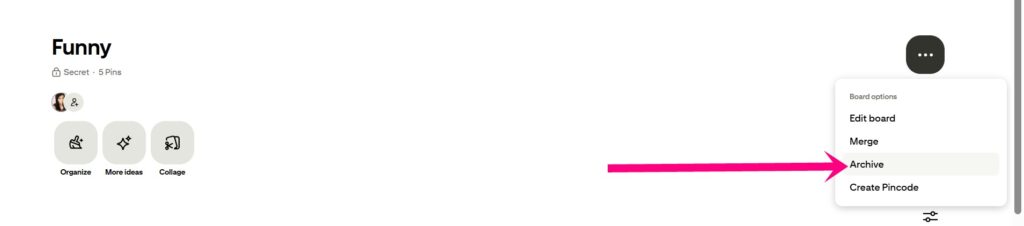
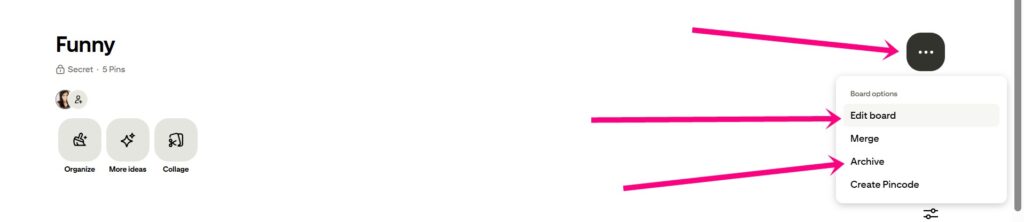
Then find the board you want to delete and click on it. When you’re inside the board, you’ll see a button with three dots (top right corner). Tap it.
A drop-down menu will show. You can choose to archive the board (if you’re not sure about deleting it). Or you can click “Edit board,” where you’ll find the option to delete it forever.
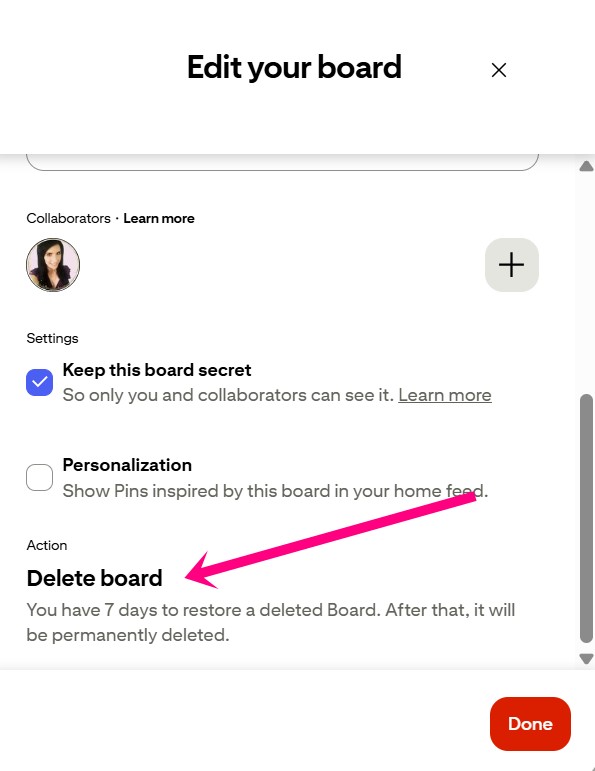
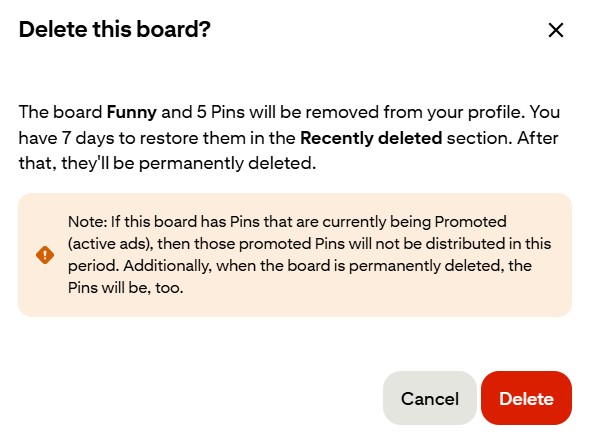
If you clicked on “Edit board,” then the box will open, and you’ll have to scroll down to see the option “Delete board.”
You’ll have 7 days to restore the board. After that time, it’s “bye-bye and see ya never.” Yup, you won’t be able to get the board with all those saved pins back.
Don’t worry, Pinterest will first ask you to confirm before anything disappears. So if you changed your mind, you still have 7 days to restore the board.
So if you’re sure you never want to see this board again, just click the big red button “Delete.” That’s the whole process.
If You Can’t Find the Edit And Delete Option
If the edit and delete buttons aren’t showing up, check who owns the board first. Maybe you’re on someone else’s board, or you’re in a group board you don’t own.
Simply put, Pinterest hides the delete button when you’re not the owner.
I’ve seen this happen a lot when people try to delete group boards they didn’t create. But don’t worry, if you don’t want to be a part of that group board, you can still leave.
How To Delete Pinterest Boards On The Mobile App
Log in to your Pinterest account on mobile, then open your profile. Click the button “Saved” and find the board you want to delete.

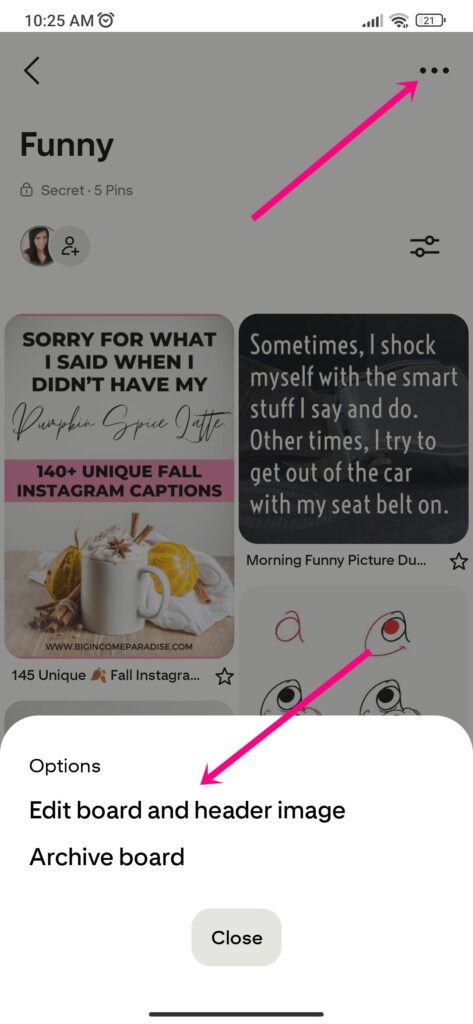
Then you’ll see the three dots at the top right corner. Click on them, and you’ll see the options “Edit board and header image” and “Archive board.” If you want to delete it, choose the edit option.
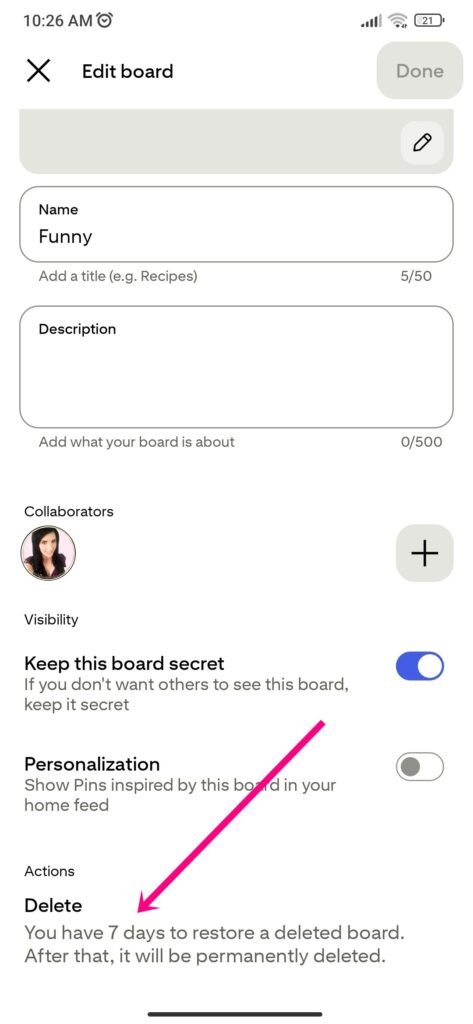
Another box will open, and you’ll have to scroll down to find the option “Delete.” The same rule applies here – you have 7 days to restore the board.
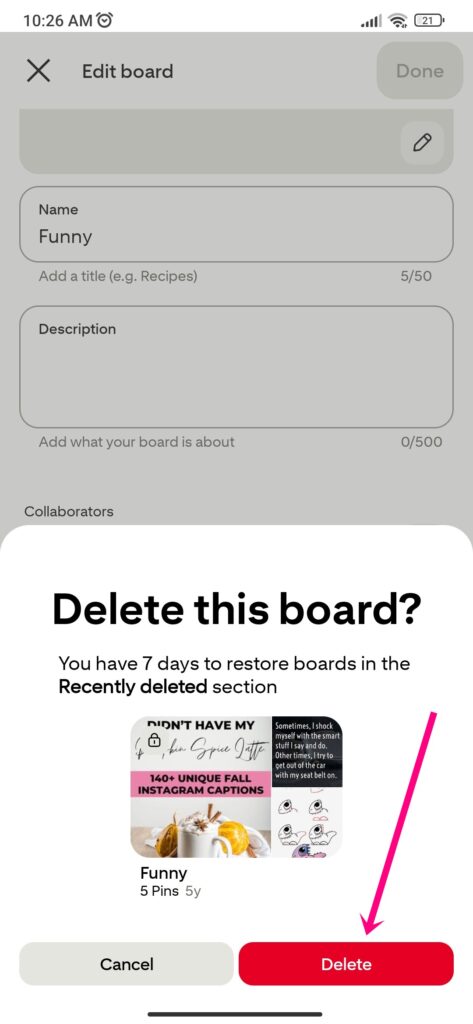
If you’re sure, then click the button “Delete.” And that’s all you have to do. Simple, right?
If Your App Or Desktop Options Look Different
Pinterest updates its layout sometimes. The steps stay the same, even if the icons move to a different place.
If you can’t find “Edit board” right away, look for a menu icon on the board.
If the delete option still isn’t showing, you’re probably looking at a group board or a board you don’t own. That brings us to the next part.
Group Boards You Don’t Own – Here’s What To Do
You can’t delete a group board unless you created it. Pinterest won’t let you, no matter how long you search for the button.
What you can do is leave. Open the group board on your profile, find the “Leave option,” and tap it. The board disappears from your profile.
My Simple Rule For Archive or Delete
As I said before, I delete when I’m sure I’ll never use that board again. But I archive them when I’m not 100% convinced I’ll use the board again.
You can do the same, because when you archive a board, no one else will see it but YOU.
I did one big cleanup after I realized some of my boards weren’t helping my blog at all. Some I rewrote the titles and descriptions, some I got rid of completely.
This Pinterest marketing strategy helped me grow my business and increase my blog traffic.
After Cleanup, Make Boards That Actually Help You Grow
Cleaning up feels good. But if you rebuild without keyword research, you’ll end up back in the same spot in 6 months.
Have you ever pinned consistently for weeks and got nothing in return? Yeah, I’ve been there myself, and it didn’t feel good.
That can happen if you don’t name your boards well. You see, Pinterest matches what people search for to the words in your board titles and descriptions.
I figured this out after wondering why my boards weren’t sending any traffic to my blog. I was using keywords, but not the best ones.
So my titles sounded strange, and my descriptions didn’t connect with anything people typed. What I did next isn’t complicated.
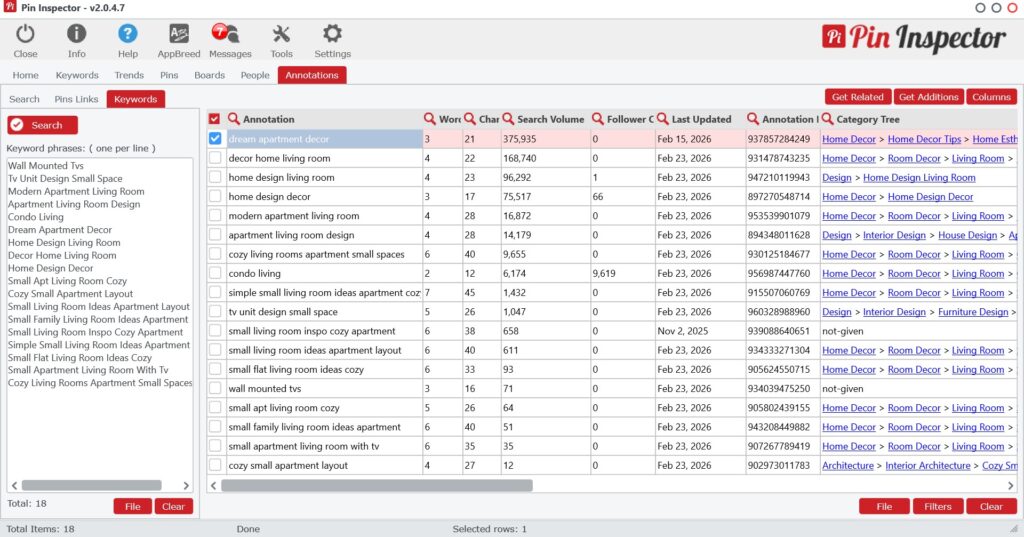
- I used Pin Inspector to research the best keywords first.
- Then I created the board name with the main keyword.
- And I’ve used other related keywords in the board descriptions.
You can delete a board in minutes. But the bigger win is making sure your next boards don’t sit there doing nothing.
If you want Pinterest to send readers to your blog or sales page, your board names and descriptions need the best keywords.
Conclusion
Now you know how to delete a board on Pinterest – on desktop and mobile. But remember, archive when you’re not sure if you want to get rid of them completely.
So start with the cleanup as step one.
But if your goal is blog or business growth, your next step should be using Pin Inspector to find keywords first, then name your boards.
Before you go, you’ll enjoy these posts:
– Your Ultimate Guide to Crafting Perfect Pinterest Board Names
– The Pinterest Keyword Tool That Blew My Mind (And Why You’ll Love It Too)
– How To Edit a Pin On Pinterest And Add Keywords Without Sounding Spammy
– How to Delete a Pin from Pinterest in Seconds (So Simple!)
– How to Make Money on Pinterest for Beginners
– How I Create Pins on Pinterest Quickly and Schedule for 14 Days
 Petra Šranc (CEO of Big Income Paradise) is passionate about teaching female entrepreneurs how to do Social Media Marketing to grow their business online. She also focuses on teaching Social Media content tactics to skyrocket traffic, leads, and sales.
